Nearby file transfer
NearPass
Send files to someone nearby with a short code.
Photos, files, and folders go from one device to another over the local network. No cloud and no account. Both people need NearPass, and both devices need to be on the same Wi-Fi.
About NearPass
NearPass is a peer-to-peer transfer app for iPhone and iPad, on iOS 16 or later.
The sender picks what to send and generates a NearPass code. The receiver enters or scans that code, finds the sender, and accepts. The file never leaves the room’s network.
Why people use it
Straight from one phone to the other
Photos, files, and folders travel over the local network. There is no cloud in the middle and no account to create.
A code you can say out loud
The sender generates a six-character NearPass code, or a QR code. The receiver types it or scans it. The code lasts 15 minutes and works once.
More than one item at a time
Send up to 50 photos, or a batch of files and folders, in one transfer. Folders are packed automatically.
Encrypted while it moves
The connection is encrypted. Only one other device can join. The code is kept in memory, and it is used up as soon as the transfer is accepted.
A check that the file arrived whole
The receiver verifies a SHA-256 hash when the transfer finishes, so a damaged copy is not treated as a success.
Progress on both screens
Sender and receiver both see the transfer as it runs. When it finishes, photos can be saved to Camera Roll, and other files are in the NearPass folder in Files.
An invitation if they do not have the app
From the waiting screen, share an App Store link or show an App Store QR so the other person can install NearPass, then enter the code.
How a transfer works
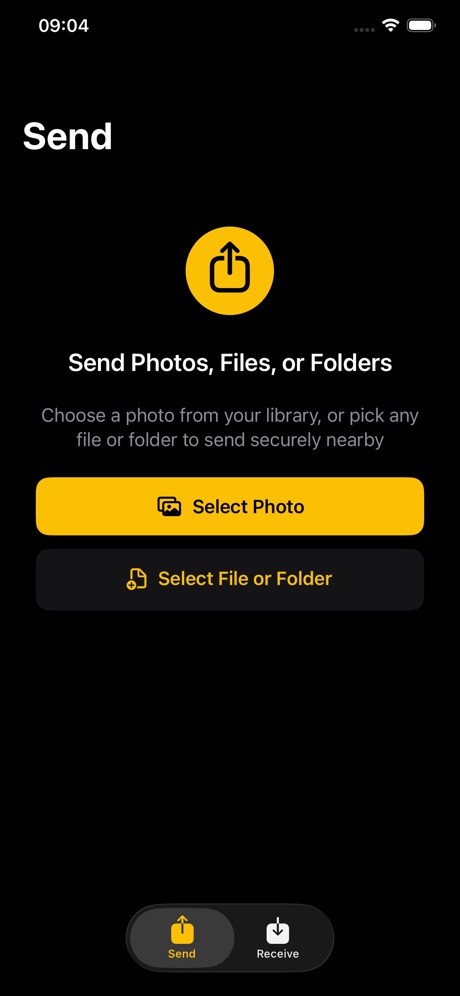
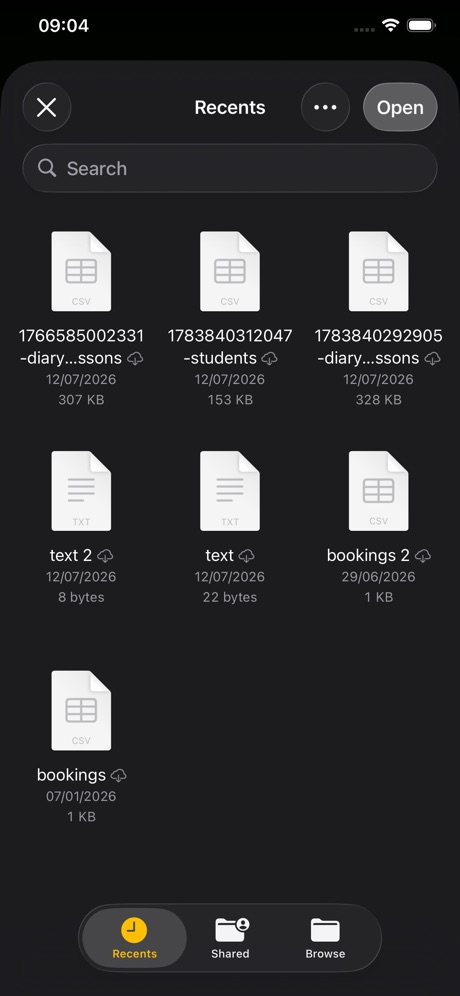
On the sending device, tap Send and choose photos, files, or folders. Tap Generate NearPass Code. If the other person does not have the app yet, share the download link or show the App Store QR first.
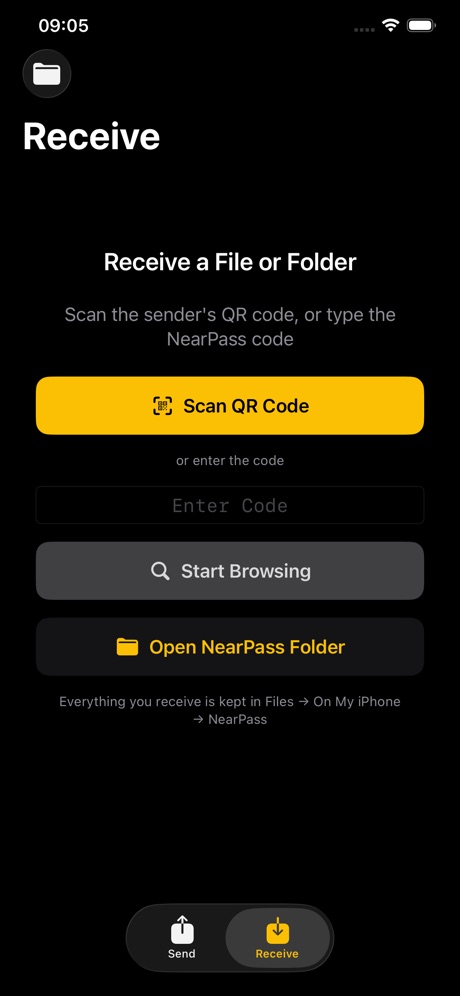
On the receiving device, tap Receive, scan the QR or enter the code, then start browsing and choose the sender. NearPass checks there is room for the file before the transfer starts.
Both screens show progress. When the file arrives, NearPass checks it is complete. Received items are saved in the app’s folder in Files, and photos can also be saved to Camera Roll.
At a glance
Category
Utilities • Files • iOS
Platform
iPhone & iPad, iOS 16 or later
Connection
Same Wi-Fi network
Accounts
None
Privacy
Nothing is uploaded
Code
Six characters, 15 minutes, once only